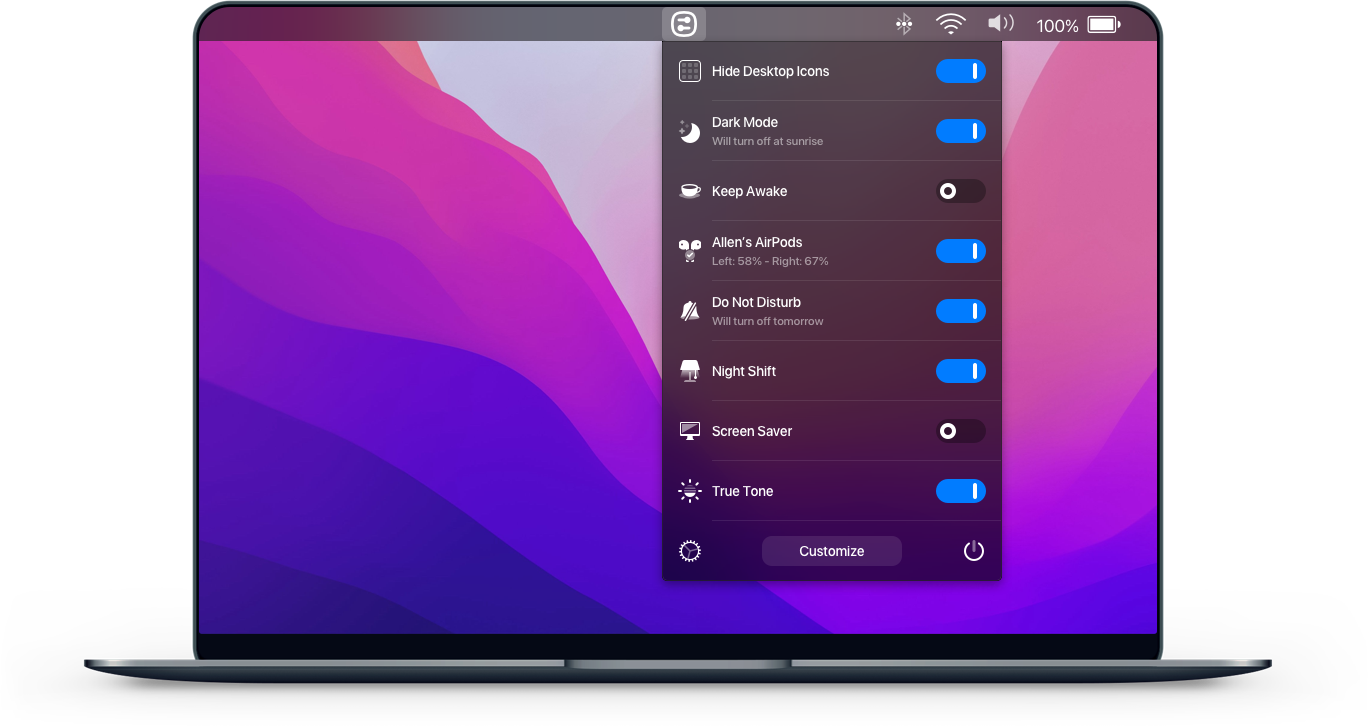
One Switch is a tool for quickly turning on or off system functions on the mac platform.。For example, hide mac desktop icons with one click、Switch to mac’s dark appearance (dark mode) with one click、Turn off Mac hibernation with one click、Turn on mac screen saver with one click、Connect to AirPods and more with one click、Show hidden files on mac with one click、Turn on Mac original color display and other functions with one click,You can also customize other features!
Hide desktop icons with one click
Hide all icons on your desktop with just one click。
Switch to dark mode with one click
Switch between dark/light appearance at any time。
Stay awake with one click
Prevent your Mac from sleeping or showing a screensaver。
Turn on screen saver with one click
Sometimes you may want to turn it on。
Connect AirPods with one click
It only takes a second to connect AirPods to your Mac。
statement:All articles on this site,If there is no special instructions or markings,All are originally published by this site。any person or organization,Without the consent of this website,Reproduction prohibited、Misappropriate、collection、Publish content from this site to any website、Books and other media platforms。If the content on this site infringes upon the legitimate rights and interests of the original author,You can contact us for processing。
Can free downloads or VIP membership resources be used directly for commercial use?
The copyright of all resources on this site belongs to the original author,The resources provided here are for reference and study purposes only.,Please do not use it directly for commercial use。If copyright disputes arise due to commercial use,All responsibility lies with the user。For more instructions, please refer to VIP introduction。
It prompts that the download is complete but cannot be decompressed or opened?
The most common situation is an incomplete download: You can compare the capacity of the downloaded compressed package with the capacity on the network disk,If it is less than the capacity prompted by the network disk, this is the reason。This is a browser download bug,It is recommended to download using Baidu Netdisk software or Thunder。 If this situation is excluded,You can leave a message at the bottom of the corresponding resource,or contact us。
Can't find the sample image in the material resource introduction article?
For members only、Whole site source code、Program plug-in、website template、Web page templates and other types of materials,The pictures used for introduction in the article are usually not included in the corresponding downloadable material package.。These related commercial images need to be purchased separately,And this site is not responsible for(There is no way)find source。 The same is true for some font files,However, some materials will have a list of font download links in the material package.。
The download address cannot be displayed or the content cannot be viewed after payment?
If you have successfully paid but the website does not pop up a success prompt,Please contact the webmaster to provide payment information for you to process
After purchasing this resource,Can I get a refund?
Source code materials are virtual goods,replicable,Transmissibility,once granted,No refunds of any kind will be accepted、Exchange request。Please confirm before purchasing to obtain the resources you need.
Comments (0)
Note: Please be respectful and civil in your comments Cancel reply
The startup screen may vary depending on your Mac model、Varies depending on factors such as operating system (macOS)。Some screens, such as the ban sign or question mark, mean you need to solve a problem first,Then the Mac can complete booting。For all Mac models,When you see the Finder menu bar、Desktop and Dock,This means that the startup is complete。today,The editor of MacW will take you to understand what the various interfaces displayed when Mac starts up represent.。 1. Forbidden symbol A circle crossed by a line or slash means that the selected startup disk contains a Mac operating system,But it's not macOS for your Mac。You should reinstall macOS on this disk。 2. Question mark A folder with a question mark means that the selected startup disk is not available,or does not include Mac OS。Learn how to fix problems with flashing question marks。 3. Blank Screen It is normal to have one or more blank screens during startup.。it may be black、grey、blue,It could also be a desktop picture。If no image appears on the screen after a while,Make sure your display is on、Connected and brightness turned up。 4. Apple Logo Your Mac displays the Apple logo after finding the local startup disk,This disk is the Mac's built-in startup disk or is directly connected to the Mac's startup disk。If your Mac cannot find your local startup disk,then it will try to use a network boot disk if one is available。As the boot process continues,You should see a progress bar or indicator showing the circle (which may or may not contain the Apple logo)。This screen may alternate with a blank screen multiple times。 If you're updating or reinstalling macOS,then this stage may take longer to complete。As the installation continues,The progress bar may move slowly and pause for a long time。Find out if your Mac seems to be stuck on this screen during the installation process or just after the installation is complete,what to do。 5. Rotating Earth When using a network boot disk,Your Mac displays a spinning globe instead of the Apple logo。When launching from macOS recovery function over the Internet,There will also be a rotating earth。As the boot process continues,You should see a progress bar,It may alternate with a blank screen multiple times。 6. Earth with warning symbol when your Mac tries to boot from macOS Recovery over the Internet and fails,You may see a globe with an exclamation mark。Your Mac may not be able to connect to the internet,Or it might be using a network configuration that's incompatible with macOS recovery features。Please try the following solutions: – Use Command-R on startup to try to use the built-in macOS recovery system,Rather than booting from macOS recovery over the Internet。 – Connect to the Internet using Ethernet instead of Wi-Fi,vice versa。 – Connect to the Internet from another network。 – Please try again later,Because the problem may be temporary。 7. Lock icon If your Mac uses a firmware password,then when you try to download a file from another disk or volume such as,external drive or macOS recovery) a lock icon appears when starting。Please enter your firmware password to continue。 8. PIN code to lock your system if your Mac is locked remotely via the Find My feature,then your Mac will ask for a PIN。Please enter a four-digit or six-digit password to continue。 9. Login window In the login window,Enter your user account password,to log into your Mac。If FileVault is open,then this action will also unlock your disk。You may see the default desktop picture in the background,After you select your account,This image may be changed to a desktop image of your choice。 By understanding these launch screens,You can better solve problems you encounter when your Mac starts up,Make sure your Mac starts up smoothly and works normally。
When buying a Mac, many people worry about whether it is an original product.。Here are some ways to help you confirm: 1. Check outer packaging sealing film: •Original sealing film should be flat and smooth,There are three sealing lines on the left and right sides of the barcode and the lower side.。If the sealing film has been removed,There may be obvious traces or incomplete sealing。 2.Check the pores: •The original packaging will have neatly distributed air holes.,This is one of the characteristics of the original sealing film。 3. View barcode: •Real barcodes are legible,Exquisite printing,Usually black print。Barcode is one of the unique identifiers,Make sure it is consistent with Apple’s official records。 4. Confirm machine serial number: •After powering on,Click on the Apple logo in the upper left corner,Select "About this machine" to view the machine's configuration information and serial number.。Check whether the serial number is consistent with the serial number on the box。 5. Query activation status: •Visit Apple’s official device protection service page,Enter the machine's serial number to confirm activation status。If it is displayed as new and unactivated,It means your Mac is genuine。 •Web address:Check out Apple Device Protection with these methods,You can feel more confident that your Mac is authentic,And avoid buying products that have been processed by others。
.mogrt file is a Pr dynamic graphics template,Able to be used in Adobe Premiere Pro。It provides a new type of template format,Motion graphics effects can be easily created and edited。 To import a .mogrt file: 1. Confirm software version: Make sure you are using the latest version of Premiere Pro that supports .mogrt files (versions below PR 2017 are not supported)。 2. Prepare template file: If you have the latest version of After Effects (2019 and above),You can use it to edit and export .mogrt files。 3. How to use one: • Open Finder,Go to path:Users/Username/Library/Application Support/Adobe/Common/Essential Graphics/Mogrt。 •If the folder does not exist,You can create it yourself。 •Drag and drop template files in .mogrt format into this folder。 •Open Premiere Pro,Select Manage More Folders in the Basic Graphics panel。 •Click "Add Path",Select the Mogrt folder created earlier。 •Click "OK" after confirming the path。 • Now restart Premiere Pro,You will see the imported template appear in the Basic Graphics panel。 4. Usage method two: •In Premiere Pro,Open the Basic Graphics panel。 •Click the plus button in the lower right corner。 •Select the .mogrt file you want to import in the pop-up dialog box,Then click "Open"。 •The template file you selected will be immediately imported and displayed in the Basic Graphics panel。 go through these steps,You can easily import motion graphics templates in .mogrt format into Premiere Pro,Use in your video editing projects。
Keka is a free macOS file decompression program,Can meet your daily decompression needs,Small size,Simple and easy to use,faster。The main compression core is p7zip (7-zip port)。 Support compressed formats:7z,Zip,Tar,Gzip,Bzip2,DMG,ISO supported extraction formats:RAR,7z,Lzma,xz,Zip,Tar,Gzip,Bzip2,ISO,EXE,CAB,PAX


Comments (0)