Typora is a simple、Efficient and very elegant Markdown editor,It provides a new Markdown writing experience where what you see is what you get。Typora combines source code editing and effect preview into one,Instantly generate preview effects when entering Markdown code。Typora is one of the most popular Markdown editors on the Internet.。
feature:
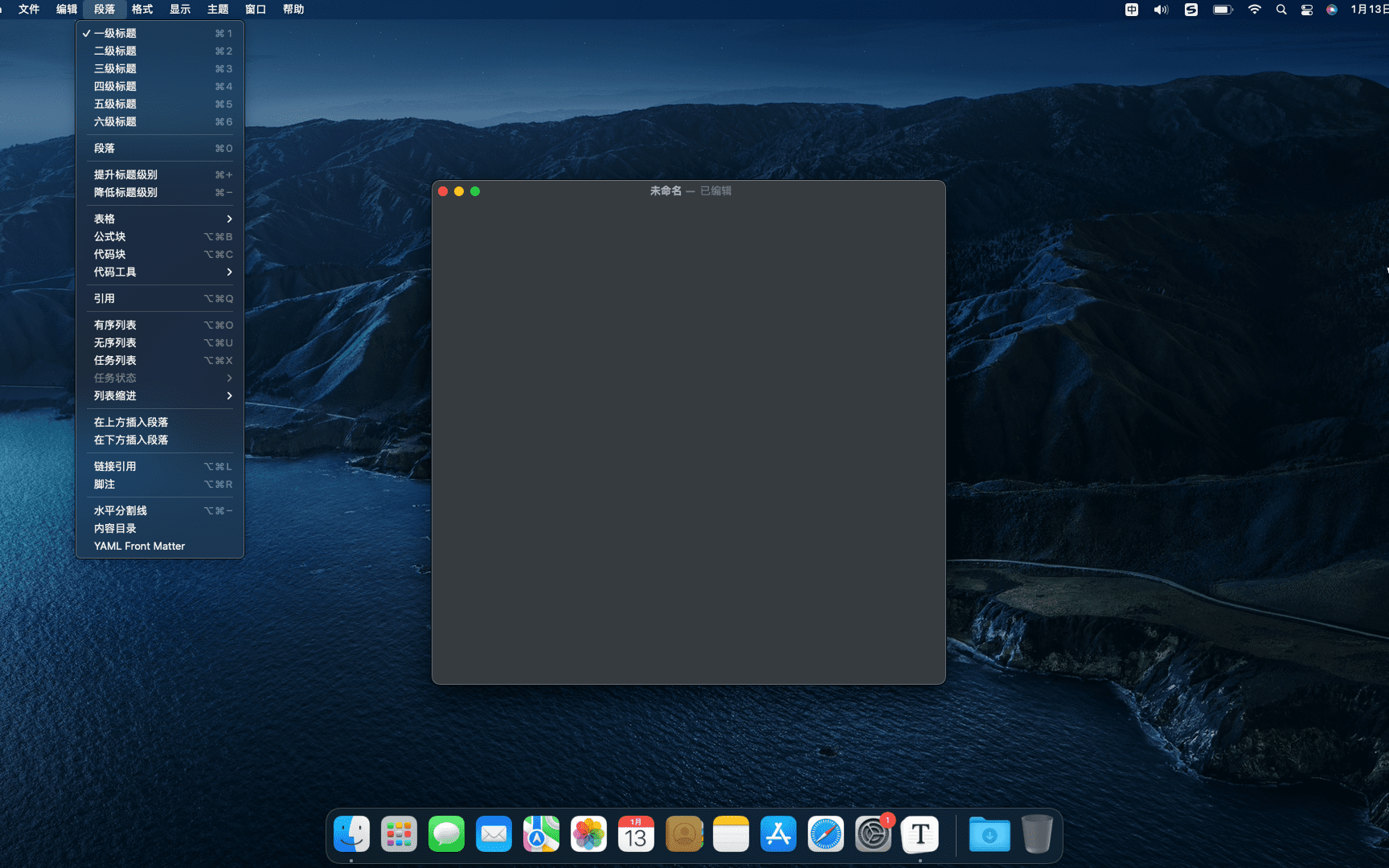
Markdown support,include tables、Code fences with syntax highlighting、LaTeX、目录
跨平台
实时预览和所见即所得功能
漂亮的界面和自定义 CSS 主题支持
轻松导出
statement:All articles on this site,If there is no special instructions or markings,All are originally published by this site。any person or organization,Without the consent of this website,Reproduction prohibited、Misappropriate、collection、Publish content from this site to any website、Books and other media platforms。If the content on this site infringes upon the legitimate rights and interests of the original author,You can contact us for processing。
Can free downloads or VIP membership resources be used directly for commercial use?
The copyright of all resources on this site belongs to the original author,The resources provided here are for reference and study purposes only.,Please do not use it directly for commercial use。If copyright disputes arise due to commercial use,All responsibility lies with the user。For more instructions, please refer to VIP introduction。
It prompts that the download is complete but cannot be decompressed or opened?
The most common situation is an incomplete download: You can compare the capacity of the downloaded compressed package with the capacity on the network disk,If it is less than the capacity prompted by the network disk, this is the reason。This is a browser download bug,It is recommended to download using Baidu Netdisk software or Thunder。 If this situation is excluded,You can leave a message at the bottom of the corresponding resource,or contact us。
Can't find the sample image in the material resource introduction article?
For members only、Whole site source code、Program plug-in、website template、Web page templates and other types of materials,The pictures used for introduction in the article are usually not included in the corresponding downloadable material package.。These related commercial images need to be purchased separately,And this site is not responsible for(There is no way)find source。 The same is true for some font files,However, some materials will have a list of font download links in the material package.。
The download address cannot be displayed or the content cannot be viewed after payment?
If you have successfully paid but the website does not pop up a success prompt,Please contact the webmaster to provide payment information for you to process
After purchasing this resource,Can I get a refund?
Source code materials are virtual goods,replicable,Transmissibility,once granted,No refunds of any kind will be accepted、Exchange request。Please confirm before purchasing to obtain the resources you need.
Comments (0)
Note: Please be respectful and civil in your comments Cancel reply
Dynamic Wallpaper Engine(Live wallpaper engine)It is a dynamic wallpaper tool carefully built for Mac users.,Let users say goodbye to the single static wallpaper of the past,Experience vibrant live wallpapers。This program provides ready-made video materials for users to choose from,It also supports importing local videos。The most convenient thing is that users can set the selected video as desktop wallpaper,You can also freely set it as a screen saver for your computer,Make your desktop come alive、interesting。 feature: 2000+Exquisite video material,Continuous updates,You don’t have to spend time finding material。 Video material classification:4K ultra clear、cartoon animation、natural humanities、Cute pets、game world、creative video、Pleasant beauty、antique style、Movie stars, etc.,There is always a style that suits you。 Support "keyword search",Search for your favorite live wallpaper。 Support "add playlist",single cycle、List loop、Shuffle mode。 Support scheduled switching,Automatically switch live wallpaper every half hour/hour/daily。 Support dynamic screensaver,Personalized lock screen,Full of style。 Support "break reminder",Custom reminder time,Avoid eye and brain fatigue。 Import local videos with one click,Convenient and fast。 Supports multiple screen aspect ratios and native resolutions,Support fish screen。 Support multiple monitors,Different dynamic wallpapers for different monitors。 Turn on smart control,Automatically pause when using other apps,Work without being disturbed。 Automatically pause when power is not connected,Save power。 Support hiding desktop icons,Immersive experience。 Support "global shortcut keys",Switch wallpapers with one click、Hide desktop icons、display saver。 one time purchase,Valid permanently,There are no charging points in the software。 Zero App learning cost,Simple interaction,Pursue the best experience。 Dynamic Wallpaper is designed to provide a fun experience,while occupying as little system resources as possible。
The Chinese cracked version of CleanMyMac X can clean up all the messy useless files in the system in just two simple steps.,Save valuable disk space。cleanmymac x Personally think that X represents the biggest upgrade in the interface,More features added,More compatible with the latest macOS system,Smoothly and more integrated with system performance,Silent cleanup、record update、Clean cache、Quick and safe removal、Important features like uninstalling apps and emptying the Recycle Bin。
If you want to test network speed on Mac,To ensure the performance of your network connection or to diagnose network problems,The following methods can be used: Use the built-in Network Utilities 1. Open "Network Utilities" •Click on the Apple icon in the upper left corner of the desktop,Select "System Preferences"。 •In System Preferences,Select "Network"。 •In the Network window,Click the "Advanced" button in the lower left corner,Then select the Network Utilities tab。 2.Test your network speed •In the Network Utilities window,Select the "Information" tab。 •View network connection details,including signal strength、Connection speed etc.。 Use an online internet speed test tool 1. Visit the Internet speed test website •Open Safari or other browsers。 •Visit a popular internet speed test website,For example Speedtest.net or Fast.com。 2.Run the test •Click the "Start Test" or similar button on the website。 •Wait until the test is complete,You will see the download speed of your network、Upload speed and latency (ping) and other information。 Use the terminal command line tool 1. Install speedtest-cli • Open the Terminal application (this can be done by clicking on the magnifying glass icon on the desktop,Type "terminal" and press Enter to find)。 •Install the speedtest-cli tool,Enter the following command and press Enter: brew install speedtest-cli if Homebrew is not installed,You need to install Homebrew first。 2.Run the test •In the terminal,Enter the following command and press Enter: speedtest This will show your network download speed、Upload speed and latency information。 Through the above methods,You can easily test network speed on your Mac system,Ensure network connection stability and performance。
Optimized content: Microsoft Outlook 2019 for Mac is Office launched by Microsoft 2019 One of the components,Outlook 2019 Mac is an email and calendar tool,Can be used to send and receive emails、Schedule、Manage contact information、Take notes etc.。So,How do you find items by performing a basic search in Outlook for Mac? Next,Follow the editor to see the specific tutorial! Perform a basic search in Outlook You can use the search box on the toolbar to search within the current folder or view。 1. Go to the folder or view you want to search:For example "mail"、"Calendar" or "People"。 2. Enter search terms in the search box:Enter your search terms in the search box in the upper right corner of the Outlook window。Outlook will display search results on the Search tab。 •To conduct a comprehensive search across all Outlook files (regardless of folders or views),Please select "All Projects"。This option is available in all views。 •Every time you switch views,You need to re-enter your search terms。 3. Select search scope:You can choose where to search based on folders or views。Available options include: •mail:current folder、subfolder、All messages or all items。 •Current email:Search within the currently selected mailbox。 •calendar:current folder、all events or all projects。 •Contact person:current folder、All contacts or all projects。 •Task:current folder、All tasks or all projects。 •notes:current folder、All notes or all items。 4. Complete search:After viewing the search results,Click Close Search on the Search tab。 •Notice:If you don't click "Close Search",The Search tab will remain active,The project list will continue to show search results,Even if you click on other tabs (like the Home tab)。 •Outlook...


Comments (0)